Short answer: pick a model-aware, image-to-image tool (not a text-to-image one), set it to its strictest "faithful" or "preserve geometry" mode, start from a clean, uncluttered screenshot, and then check the result against your model before it goes anywhere near a client — because even the best faithful mode is a very strong instruction, not a hard guarantee. Here is what actually determines whether an AI render holds your massing, your openings and your camera, and the 60-second check that catches it when it doesn't.
Why AI renders drift from the model in the first place
Most AI image tools were built to generate pictures from a text description, not to hold a specific building. Feed one your screenshot and a prompt, and it treats your image as a mood reference, not as data — which is exactly the failure mode architects run into. One professional described it plainly after running a rendering through a general-purpose AI tool: it "cropped the photo and altered some of the other elements of the rendering even though I instructed it not to." Another, an architect who relies on AI to enhance SketchUp scenes, ran into a subtler version of the same problem — colleagues who "flat-out reject" the results, because a render that quietly reinterprets the design is worse than one that obviously needs work.
This is not a one-off complaint. On a modeling-software community forum, one user described asking an AI tool to render three distinct cedar planter boxes from their model — and getting back three that looked identical, with dimensions that read as 24" × 48" instead of the modeled 48" × 96" × 12". Other users in that thread had workarounds (simpler prompts, one object at a time, treating it as a "quick and dirty" first pass) but nobody disputed the core problem: a tool that isn't reading your actual geometry will happily invent something plausible-looking in its place.
The fix is not a smarter sentence in your prompt. It is starting from a tool that works image-to-image — meaning the render is generated from your actual screenshot, not typed up from scratch — and that has a mode built specifically to hold geometry rather than reinterpret it. That mode, however it is labeled — Faithful, Preserve Geometry, Geometry Override — is still an instruction given to a model that generates pixels, not a CAD constraint. It is the strongest lever available today, and it is not infallible. Both things are true, and the rest of this guide is about using the lever well and catching it when it slips.
Some tools approach this with pixel-level structural conditioning derived from the input image — edges, depth, that kind of signal — which is a published, well-understood technique in image generation research. Airender's top-level Preserve design control uses the Balanced instruction by default; Advanced exposes the stricter Faithful setting. Both use explicit, architecture-specific instructions and guards that tell the model to ignore toolbar icons and stray UI in a raw software screenshot. In practice, neither approach is a substitute for looking at what came back — which is exactly why the checklist further down exists regardless of which method a tool uses under the hood.
See it on one model, at three settings
Numbers matter less here than seeing it. Below is the same SketchUp screenshot run through the three settings on Airender's Advanced fidelity slider — nothing else changed.
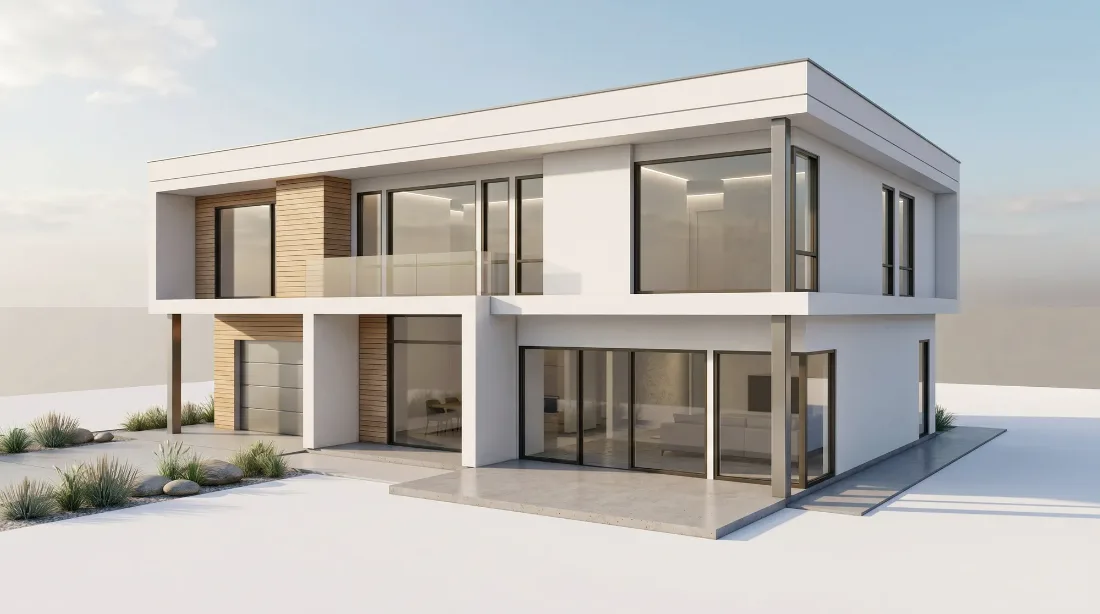
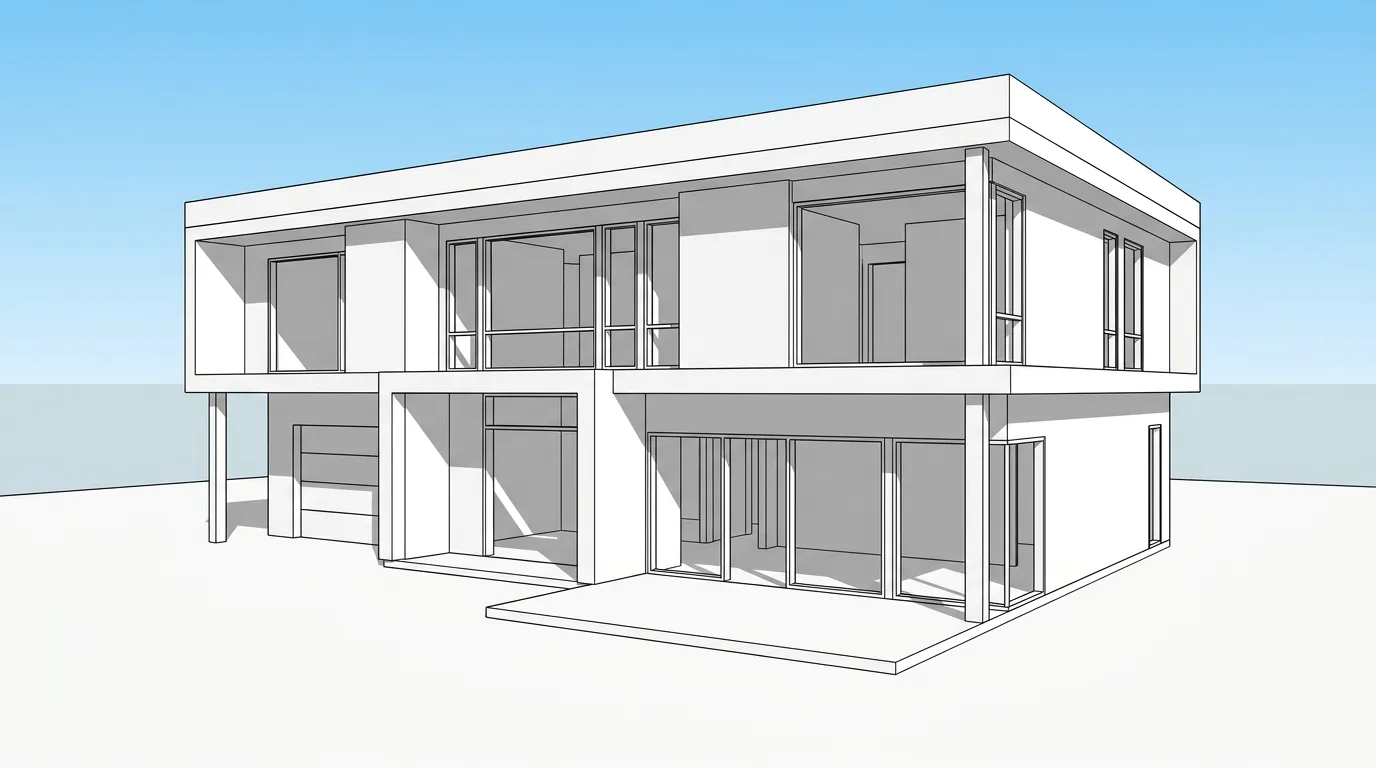
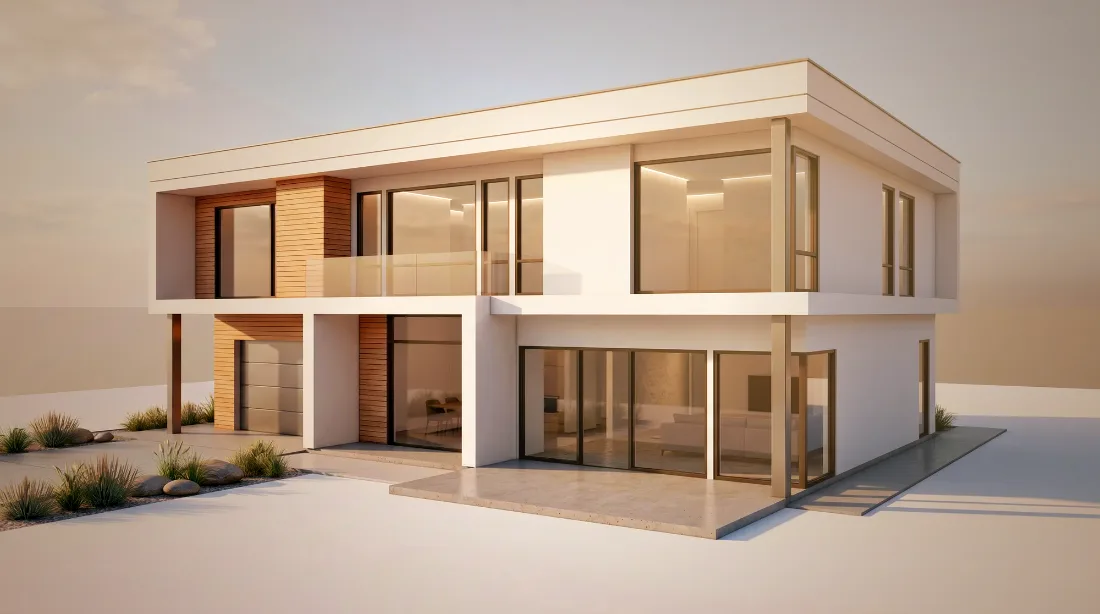
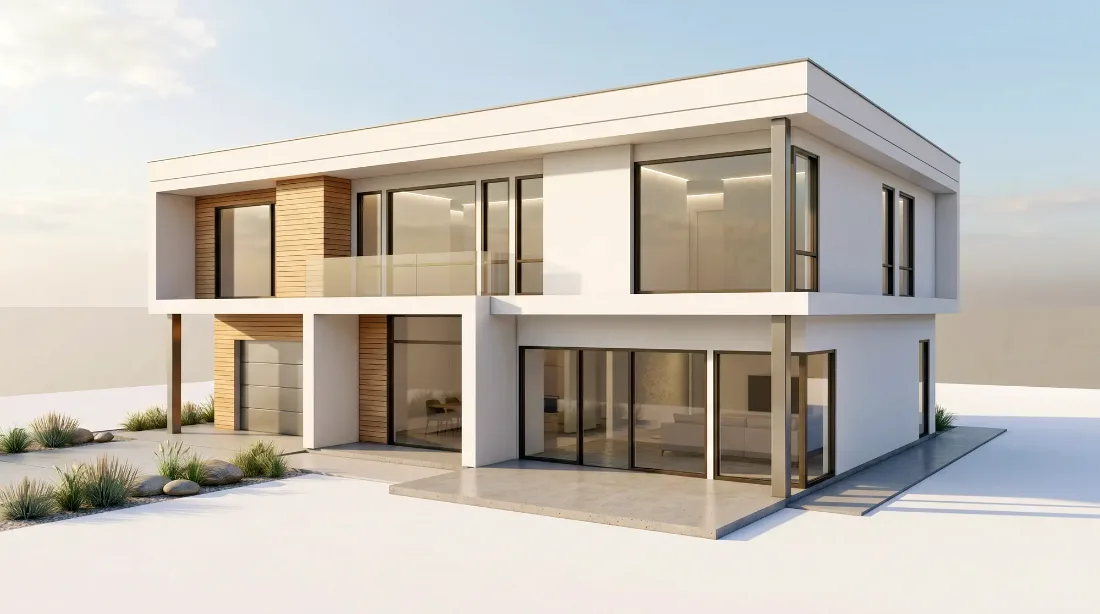
And here is what the same model looks like from a naive, non-architecture-aware prompt with no geometry instruction at all — no editing, no cherry-picking, just what a generic "make this photorealistic" request does to a building:
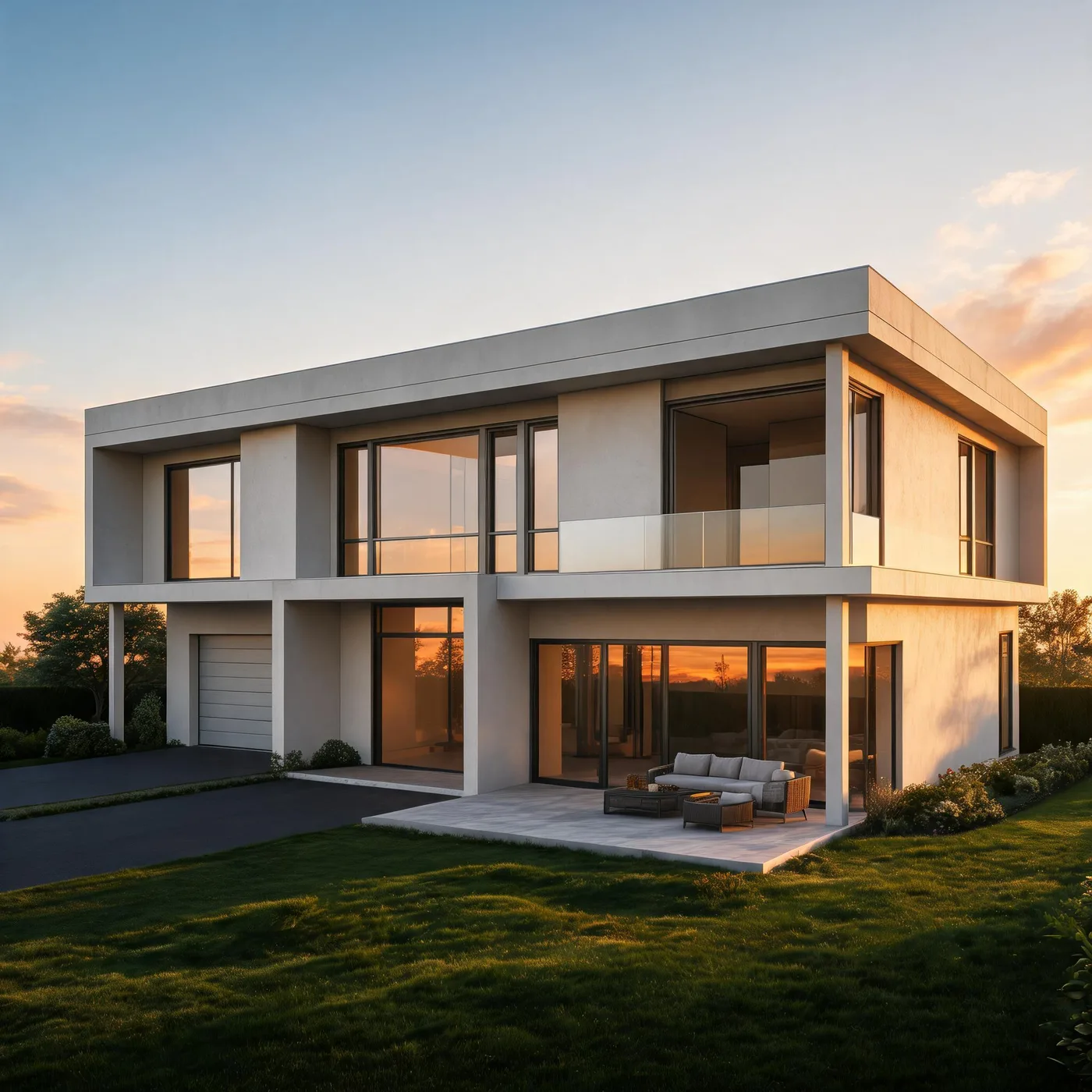
That last image is the real risk. Not that AI rendering "looks fake" — photorealism is broadly solved — but that it can look completely convincing while quietly changing what you designed.
Where even the Faithful setting can still slip
The Faithful setting is a strong instruction to a generative model, not a geometric lock, so it is worth knowing where it can still go wrong:
None of this means the tooling is unreliable — the same field-wide caution applies to every generative render, from every vendor. "One-click and done" is the wrong expectation for any of them: as one architect visualization professional put it, describing AI rendering generally, "you still need a deep understanding of visualization, lighting, and composition." The Faithful setting reduces the biggest risk — structural reinterpretation — but it does not remove the need to look at what came back.
Five things that actually determine whether your geometry holds
In roughly descending order of impact:
Interiors need a slightly different eye
Everything above applies to interiors too, but the specific things worth checking shift. An exterior render mostly needs to hold its massing and openings; an interior render needs to hold its layout — where the walls, windows and any built-in elements actually are — because that's what a client or a contractor will read off it. The things that go wrong most often on interiors specifically:
If most of your work is interior views without a lighting setup ready to go, rendering an interior without setting up lights first covers that specific workflow — the geometry checklist below still applies on top of it.
The 60-second geometry check before it goes in the deck
This is narrower than a general "is it good enough" review — it is specifically about whether the building itself is still your building:
Fail any of the five and either regenerate with Advanced fidelity set to Faithful and a cleaner input, or fall back to your own judgment on that specific view — don't ship it because the lighting looked good.
Getting a skeptical team on board
Convincing yourself is only half the problem. Remember the architect earlier who relies on AI to enhance SketchUp scenes and gets results they're happy with, but keeps "running into professionals who flat-out reject" them anyway? That's rarely an argument about image quality — it's a trust problem, and trust problems don't get solved by asserting the tool is fine. They get solved the same way you'd settle any other technical disagreement in the office: with the actual model, in the room.
Don't pitch AI rendering to a skeptical colleague or principal in the abstract. Instead, run the 60-second checklist above on a project they already know, with them watching — same massing, same openings, same camera, called out one by one against the model on screen. It takes about a minute and it's a more convincing argument than any amount of "the tool is good, trust me." If someone on the team has been burned by a generic AI tool before (a cropped photo, an invented wing, a colleague's design quietly rewritten), showing them the naive-prompt comparison earlier in this article side by side with the Faithful output is often what actually lands — it validates that their skepticism was reasonable, and shows specifically what a model-aware tool does differently.
When to skip AI rendering for this entirely
If the deliverable needs to be dimensionally authoritative — a permit set, a construction document, anything a contractor will build directly from — no AI render, however faithful, should stand in for a drawn and checked plan. The Faithful setting is built for the render that sells or explains the design; it was never meant to replace the drawing that builds it. The same goes for anything requiring an exact, named product or material — a specific tile SKU, a precise RAL paint code — since an AI render communicates how a material reads, not which product it is. Reserve it for the moments where speed and clarity matter more than spec-level precision: concept presentations, design options, early client buy-in, competition boards — the bulk of what fills an architect's week between the drawing set and the final delivered building.
The only real test: your own model, checked
No article can confirm your specific model held up — only running it can. Open a screenshot in Studio, choose Preserve design, move Advanced fidelity to Faithful if needed, and hold the result up against your model using the checklist above. Three free previews, no card required.
Frequently asked questions
Will an AI render change my building's geometry?
It can, if the tool generates from a text prompt or treats your image as a loose reference rather than the actual source. A model-aware, image-to-image tool set to its strictest "faithful" mode is built specifically to hold your massing, openings and camera fixed — but it is still an instruction to a generative model, not a hard geometric lock, so checking the result against your model is still worth the minute it takes.
Which Studio setting keeps my model most accurate?
Choose Preserve design, then open Advanced and move fidelity to Faithful for the strictest instruction. Faithful aims to preserve massing, openings, rooflines, proportions, perspective and camera, and to change only materials, lighting and realism. Balanced is the Preserve design default; Creative is the More creative choice.
Does the Faithful setting use my CAD data, or is it just a filter?
It's an image-to-image render built from your actual screenshot, guided by an explicit instruction to hold the geometry — not a filter over a freshly imagined building, and not a separate structural-conditioning system reading your model file. That distinction is why a clean, unambiguous input screenshot matters so much: the model is working from the picture in front of it, not from your drawing set.
Why did my AI render still change something, even on Faithful?
The most common causes are a cluttered or ambiguous input screenshot, a mismatched project type, notes that asked for a structural change rather than a material one, or generating multiple views independently and expecting them to agree. The Faithful setting removes most structural reinterpretation; it doesn't remove the value of the 60-second check above.
Can I use an AI render for a permit or construction submission?
No. The Faithful setting is built to keep a presentation-quality render honest to your design intent — it is not a substitute for a checked, dimensioned drawing. Use it for concepts, options and client buy-in; use your drawing set for anything that has to be dimensionally authoritative.
Does a messy screenshot really affect the result?
Yes — toolbar icons, dimension strings, section markers and other on-screen UI compete with the actual building for the model's attention. A clean, single-object screenshot with nothing but the model in frame gives the tool the least room to misread what you uploaded.
Do I need a paid plan to use the Faithful setting?
No. Faithful, Balanced and Creative are all available on the free previews under Advanced — fidelity isn't gated behind a paid plan. Paid plans unlock HD 4K and Ultra 5K output, so you can evaluate whether the Faithful setting holds your geometry before paying.
Does the Faithful setting use more generations than Balanced or Creative?
No. All three fidelity settings use the same amount. A Render, Edit, or Enhance uses one generation at Standard, HD, or Ultra, so there is no cost reason to test on a looser setting than the one you would actually use.
What happens to my design files when I use an AI rendering tool?
This depends entirely on the provider, so read the terms before you upload anything you consider sensitive. With Airender, your models and sketches are processed only to produce your renders and are never used to train models. Design data and IP are a legitimate concern for any tool you adopt — confirm it in writing rather than assuming.
Can I use a render made with the Faithful setting commercially, in a client proposal?
Yes. Paid renders are watermark-free and come with commercial rights, which matters if the render is going into a proposal, a bid, or anything client-facing rather than internal exploration.
Is this different from Airender's general "is AI rendering good enough" article?
Yes — that article covers the broader question of when an AI render is presentable at all, with a six-point safe-to-send checklist. This one is specifically about the geometry-preservation mechanism: why drift happens, how the Faithful setting addresses it, and the narrower check that confirms the building itself didn't change.