Short answer: Enscape is a real-time engine — it needs a dedicated GPU (4GB VRAM minimum, 8GB recommended) installed as a plugin in your modeling software, and it costs $47.90–$60.90/month depending on tier. A browser-based AI rendering tool needs neither — no GPU, no plugin, no annual commitment — but it trades away Enscape's actual strength: live, real-time walkthroughs where you fly through the model and materials update instantly. If you need to move through a space with a client on a call, that's still Enscape's job. If what you actually need is a still, presentable image from a screenshot, that's a different tool, and it's worth knowing that before you pay for either.
Why people go looking for an Enscape alternative
Two different situations keep showing up, and they're both real:
The hardware doesn't meet the requirement. One Revit user described their situation plainly: "I have a 2017 MacBook Air partitioned with Bootcamp for Revit. Unfortunately it does not have the graphic capabilities for Enscape, is there any other way to improve my renderings besides Photoshop afterwards? Or are there any other cheap rendering programs." That's not a vague complaint — it's a specific hardware floor. Enscape's own minimum requirement is a dedicated GPU with 4GB VRAM running Vulkan 1.1 (NVIDIA GeForce GTX 900-series/Quadro M-series or newer, or an AMD/Intel Arc equivalent); integrated graphics with shared memory — which is exactly what a 2017 MacBook Air has — doesn't qualify, on any operating system.
The subscription doesn't survive a slow season. A SketchUp user on a modeling forum put it differently: "I really like Enscape, but probably cannot justify it after this month, in light of remodeling downturn… Anyone have another real time rendering favorite?" This isn't a hardware problem — it's that a fixed monthly cost is hard to justify when the render volume that would make it worth it isn't there that month.
Different triggers, same conclusion: something that doesn't require a capital outlay or a fixed monthly floor. That's the gap browser-based AI rendering fills — not by being a better Enscape, but by being a different kind of tool for a different moment.
One freshness note, since the Mac quote above is a few years old: Enscape added native Apple Silicon support after that post (M1 through M4 Macs are now supported), so "Enscape doesn't run on Mac" is no longer true across the board. What hasn't changed is the underlying GPU floor — an Intel-based Mac is still unsupported outright, and any machine (Mac or Windows) without a dedicated GPU meeting that 4GB VRAM minimum still doesn't qualify, native Mac build or not. The hardware requirement is the constant; the OS workaround is what's evolved.
In plain terms, "4GB dedicated VRAM" rules out more machines than it sounds like. Integrated graphics — the kind built into most laptop CPUs, including Intel and Apple's own base-tier chips — shares memory with the system rather than having its own, and Enscape's documentation is explicit that shared VRAM doesn't count, regardless of how much RAM the laptop has overall. A handful of newer integrated chips (Intel 13th-gen with UHD 730 or better, AMD Ryzen 6000-series and up) get partial support, but most laptops bought for writing specs and running CAD software — not gaming — simply don't ship with a qualifying discrete GPU. Meeting the floor usually means budgeting for hardware on top of the software subscription, whether that's a new machine, an external GPU, or a workstation upgrade — a real cost that a browser-based tool removes from the decision entirely, because the rendering happens on the provider's servers, not your laptop.
How each one actually works, step by step
The hardware and pricing tables above don't capture what the day-to-day workflow feels like, and that's often what actually decides which tool fits:
Enscape: install the plugin for your modeling app (SketchUp, Revit, Rhino, Archicad or Vectorworks), launch it from inside that app, and it opens a live viewport alongside your model — move the camera and the render updates in real time. Materials, lighting and camera moves are all interactive. Once it's installed and your GPU meets the floor, there's no per-render step — you're just looking at your model rendered, continuously, for as long as you're working.
Browser-based AI rendering: no install. Export or screenshot the view you want rendered from whatever software you already use, open it as a Studio session, then choose a visual style and Preserve design behavior beside the canvas. A still image comes back in about a minute and becomes a version you can compare, Edit or Enhance. There's no live camera movement — each view begins as its own session, which is slower per-view than Enscape's instant preview, but requires nothing installed and nothing running locally.
The practical difference: Enscape is a persistent tool you leave running while you design; AI rendering is a one-off step you reach for when you need a specific still image to look finished.
If you work in SketchUp or Revit specifically
Both VOC threads behind this comparison came from SketchUp and Revit users, so it's worth being concrete about each:
See a real result first
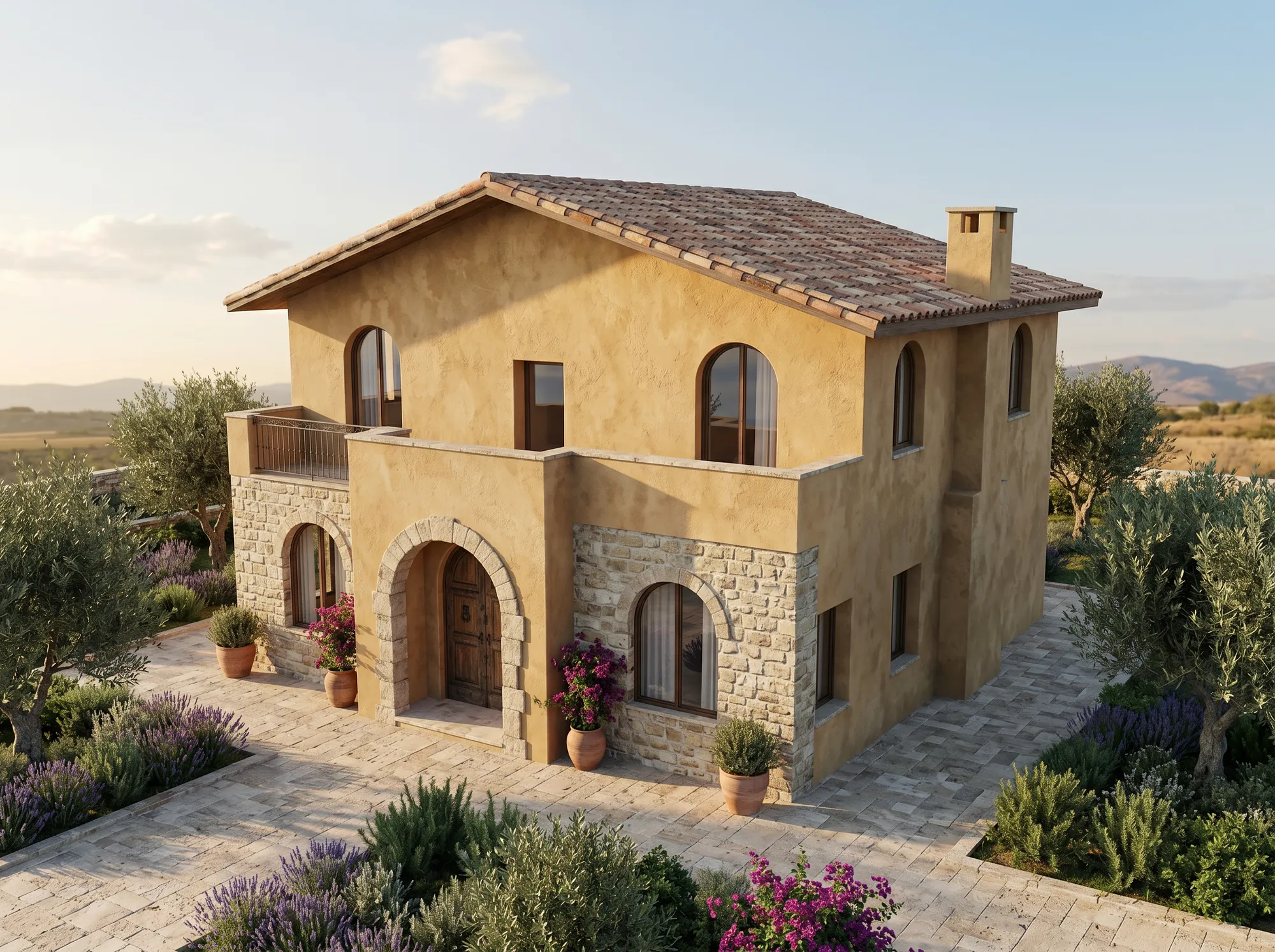
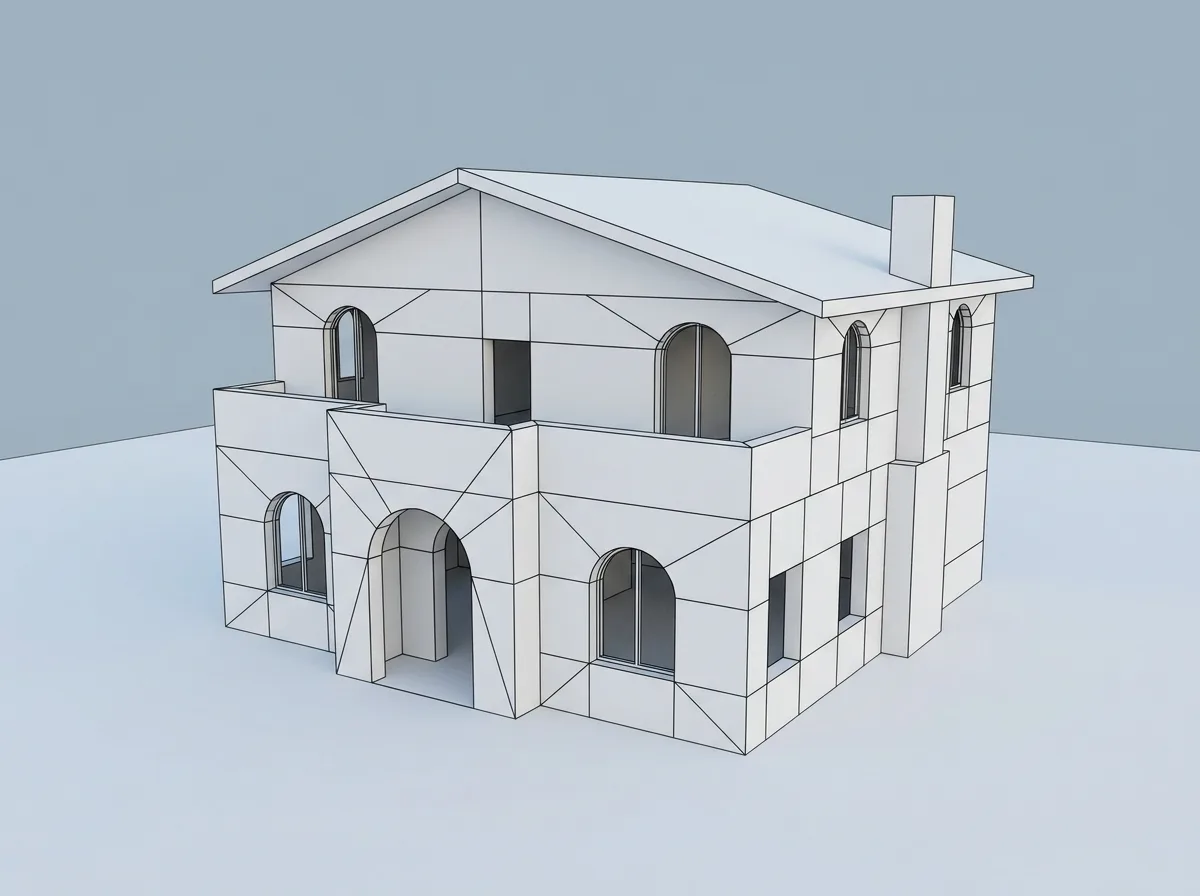
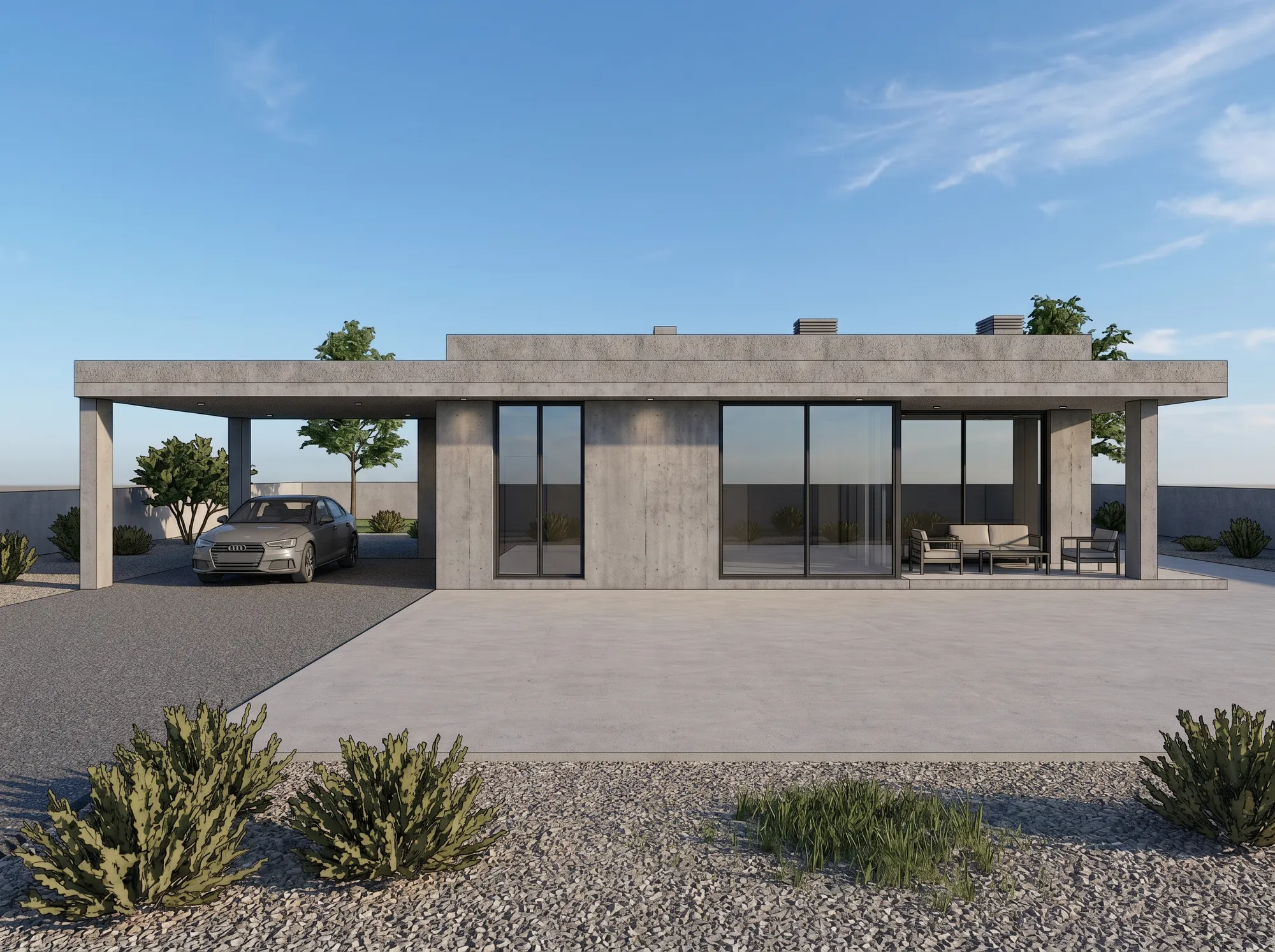
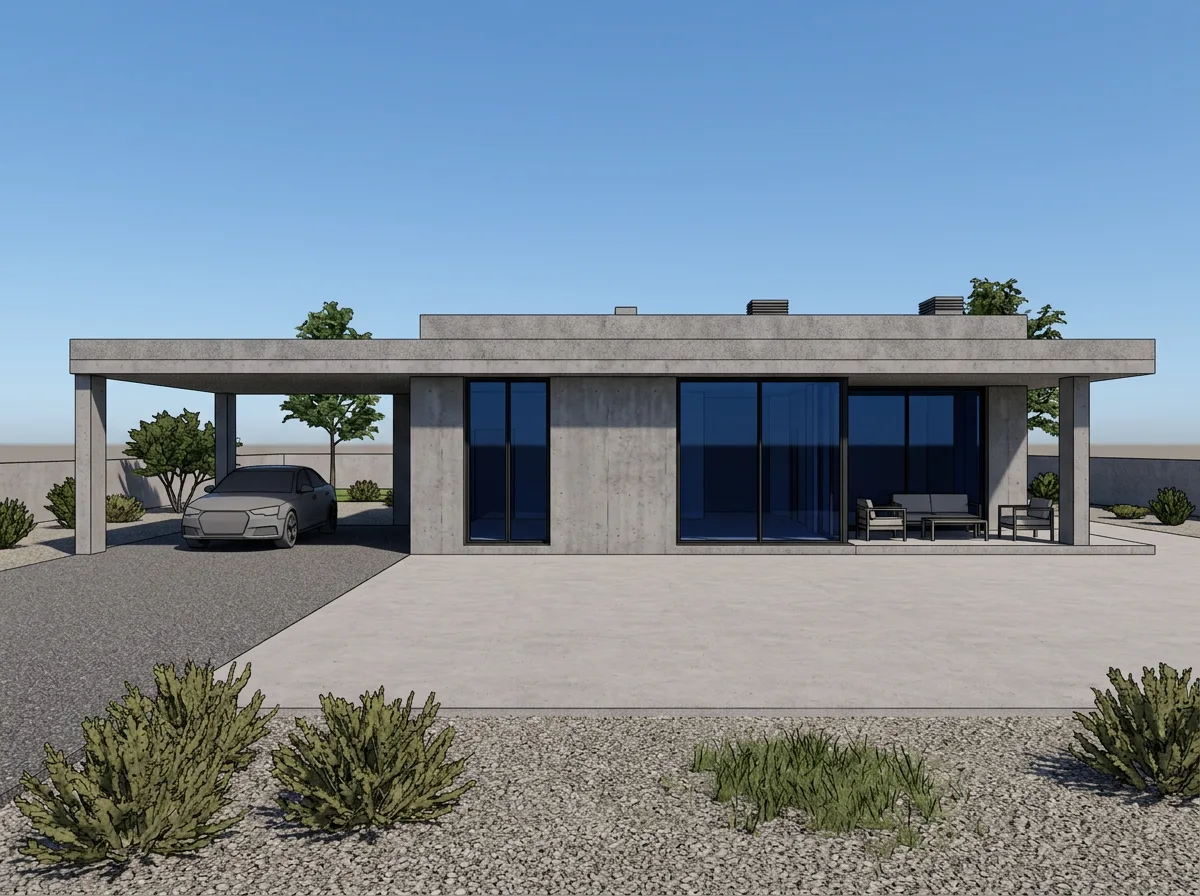
No render preview replaces trying it on your own screenshot, but here's a real one to start from — a plain model view turned into a presentable exterior, the kind of still image this comparison is actually about:
AI rendering vs Enscape, at a glance
Enscape pricing and system requirements verified against chaos.com and Chaos's own system-requirements documentation, checked 2026-08-02 — reconfirm before relying on exact figures, since subscription software pricing changes.
The actual cost comparison
Enscape's cheapest commercial tier (Solo) is $47.90/month billed monthly, or $574.80/year if you commit annually — a fixed cost whether you render once or every day that month. Its Premium tier (the one Chaos itself flags as the "preferred" pick) runs $55.90/month or $670.80/year.
Airender's free tier gives three watermarked preview renders with no card, which is enough to judge whether the output holds up before spending anything. Past that, paid tiers use monthly generations rather than a flat seat license: the Starter plan is $24/month for 200 generations ($0.12 each), or $199/year (about $0.083 each across the monthly allowances). A Render, Edit, or Enhance uses one generation at Standard, HD, or Ultra — which, if your actual usage is a handful of stills a month rather than daily use, works out well under a fixed Enscape seat.
The trade that number doesn't show: Enscape's fixed cost buys unlimited real-time renders and a live walkthrough capability that a generation-metered still-image tool simply doesn't have. If you render constantly and need to walk a client through the space live, the math flips — a flat license amortized over daily use can beat a monthly generation allowance. This is a genuine "it depends on your actual usage pattern" comparison, not a case where one tool is just cheaper.
Where the fixed cost actually bites is exactly the situation in the SketchUp quote above: a slow month. Sign up for Enscape's annual Solo plan and you're committed to $574.80 for the year whether that particular month needs three renders or thirty — the license doesn't pause for a quiet remodeling season. A pay-for-what-you-use tool has no equivalent floor: three previews are free, and if a month needs zero renders, it costs zero. For a freelancer or small firm whose workload swings with the season, that difference in downside risk is often worth more than the per-render math above.
Where Enscape still wins
Being honest about this is what makes the rest of this comparison worth trusting:
If any of those are what you actually need, an AI rendering tool is the wrong answer — not because it's worse, but because it's solving a different problem.
Does the image quality actually compare?
This is a fundamentally different technique, not just a different price point, and it's worth understanding why before you judge one against the other on a screenshot.
Enscape is a real-time rasterizer with ray-tracing features layered on — it's rendering the actual geometry, materials and lights you set up in your model, the same way a video game engine draws a scene, just tuned for architectural visualization. What you see is a direct, physically-driven interpretation of the data in your file.
AI rendering is generative — a diffusion model produces a new image guided by your screenshot and a text instruction, rather than tracing rays through your actual scene data. That's why it can turn a flat, unlit draft into a fully lit, materially rich photo in about a minute without you setting up a single light or material — the tool is inferring plausible lighting and materials, not calculating them from a scene you built. It's also why fidelity settings and a quick visual check against your model matter (see the Faithful-mode guide linked above): the image is a strong approximation of your design, not a direct render of your model's data.
In practice, for a single presentable still, both can look convincing — that's the whole reason this comparison exists. The difference shows up at the edges: Enscape will never invent a window that isn't in your model, because it's incapable of drawing anything that isn't there; a generative tool can, rarely, on an ambiguous input. For a live walkthrough where a client might look anywhere, that direct-from-data guarantee is worth the GPU. For one still image you'll check before sending, it usually isn't the deciding factor.
Which one actually fits your situation
None of these are permanent choices. A firm that starts on AI rendering because the hardware isn't there yet can add a real-time engine later once the work justifies the GPU; one that already runs Enscape for review can still reach for a fast still-image tool on the one Friday afternoon a client wants a slide by end of day.
Try it before you decide anything
The fastest way to know which side of this you're on is to upload the exact screenshot you were about to open Enscape for, and see what comes back in about a minute — no GPU, no install, no subscription to justify first.
Frequently asked questions
Is there a free alternative to Enscape that doesn't need a GPU?
Yes, for still images specifically — browser-based AI rendering tools, including Airender, offer a handful of free preview renders with no GPU and no install. They don't replace Enscape's real-time walkthrough, but for a presentable still image from a screenshot, no GPU is required.
Does Enscape work on a MacBook?
Only on Apple Silicon Macs (M1 through M4) — Enscape added native macOS support after earlier complaints about Mac compatibility. Intel-based Macs are not supported at all, on macOS or through Bootcamp/Parallels, and any machine (Mac or Windows) still needs a dedicated GPU meeting Enscape's 4GB VRAM minimum.
Is AI rendering as accurate to my model as Enscape?
Enscape reads your actual 3D model directly, so its geometry is exact by construction. A model-aware, image-to-image AI tool set to its strictest fidelity mode is built to hold the same massing, openings and camera — but it's an instruction to a generative model, not a live read of your geometry, so it's worth a quick visual check against your model. See how to keep an AI render faithful to your model for the full mechanism and a checklist.
Can I use AI rendering and Enscape together?
Yes — they're not mutually exclusive. A common pattern is running a real-time engine like Enscape for internal design review and live walkthroughs, and reaching for a fast AI render when a screenshot needs to look client-ready without reopening the modeling file.
What does Enscape actually cost per month?
As of 2026-08-02: Solo is $47.90/month ($574.80/year billed annually), Premium is $55.90/month ($670.80/year), and Collection is $60.90/month ($730.80/year) — verify current pricing on Chaos's own site before budgeting, since subscription pricing changes.
Do I need a powerful computer for AI rendering if I can't run Enscape?
No — the render happens on the provider's cloud hardware, not your machine, so a laptop that fails Enscape's GPU requirement entirely still works fine for browser-based AI rendering. That's the whole practical advantage over a real-time engine.
Is Enscape's image quality better than AI rendering?
They're different techniques rather than one being strictly better. Enscape renders your actual scene data directly, so it's exact by construction and excellent for real-time review. AI rendering generates a plausible photoreal image guided by your screenshot, which can look equally convincing for a single still but is an approximation rather than a direct trace of your model — worth a quick check against the source, especially for client-facing work.
What GPU do I actually need to run Enscape?
Chaos's own minimum is a dedicated GPU with 4GB VRAM supporting Vulkan 1.1 — an NVIDIA GeForce GTX 900-series or Quadro M-series card or newer, an equivalent AMD Radeon RX 400-series card, or an Intel Arc A310. Integrated/shared-memory graphics doesn't qualify even if it meets 4GB in total system RAM. Recommended is 8GB VRAM, and VR pushes that to 12GB. If your current machine doesn't meet this, meeting it usually means new or upgraded hardware on top of the software subscription — which is the cost a browser-based tool removes entirely.